How to Install and Activate RCMS via SMS on Robustel Gateways
Overview
At present, there are many devices in customers' production environments which use legacy platforms such as RobustLink 2.0 or RobustVPN 1.0. Before December 2019, Robustel devices were not shipped with the Robustel Cloud Manager Service (RCMS) installed as standard. Due to the emergence of the new RCMS platform, these devices need to be migrated.
This guide explains how to remotely download, install, and activate the RCMS app via SMS so you can manage your gateways over the cloud.
Important: Before proceeding, ensure the device firmware version supports the target RCMS APP version. Not all legacy firmware is supported, and some older firmware releases may require a local firmware upgrade before RCMS can be installed remotely.
What You'll Need
Hardware & Software Requirements
- Eligible Product: Any Robustel device running RobustOS.
- Firmware Version: RobustOS 3.0.0 or greater.
- RCMS App File: A publicly accessible URL for the correct version of the RCMS App file specifically matched to your device series.
- Storage: Ensure sufficient free storage space is available on the router's flash memory before installation. Legacy apps or logs may need to be cleared.
Connectivity Prerequisites
- SMS Management: SMS remote management and authentication must be enabled and configured on the router before deployment. Ensure you know the correct router username and password.
- SIM Requirement:
- The Robustel device must use a SIM card that allows receiving and sending of SMS messaging.
- Note: Some operators block device-originated SMS responses.
- Internet Access:
- The router must already have an active internet connection.
- Verify APN configuration and DNS resolution before deployment, as the remote installation relies entirely on the data connection.
- Control Device: A mobile phone or SMS gateway capable of sending SMS messages to devices and receiving replies.
Compatibility Matrix
To prevent installation failures, ensure you are using the correct APP package for your specific hardware.
Device Series | Minimum Firmware | RCMS APP Format |
R3000 | 3.0.0 |
|
R2000 | 3.0.0 |
|
WARNING: The RCMS APP package must exactly match the device model, hardware platform, and RobustOS major version. Installing an incompatible package may cause the installation to fail.
Step-by-Step Configuration Guide
Phase 1: Preparation & Obtaining the Download Link
Instead of setting up your own HTTP file server, you can obtain a direct download URL from the official RCMS App Center.
- Get the RCMS App Download Link:
- Log in to your RCMS account and navigate to App Center in the top menu.
- Select App Center from the left-hand sidebar.
- Locate the correct RCMS app for your device series (e.g., "R2000 Series-rcms") and find your target version.
- Click Download on the right side under the Action column.
- Open your web browser's Download history, locate the
.rpkfile you just downloaded, and click the Copy link icon. This gives you the direct, publicly accessible URL needed for the SMS command.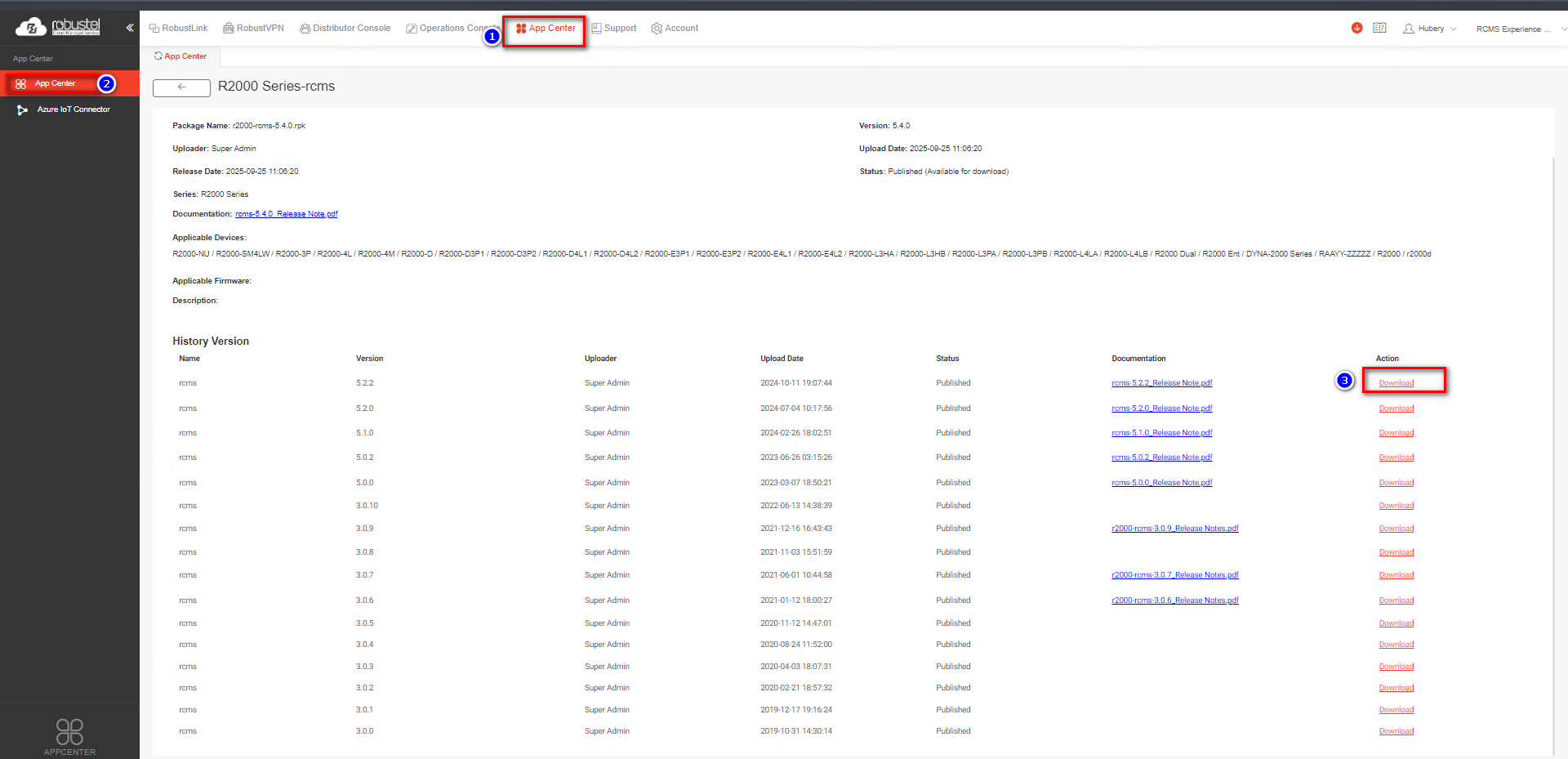
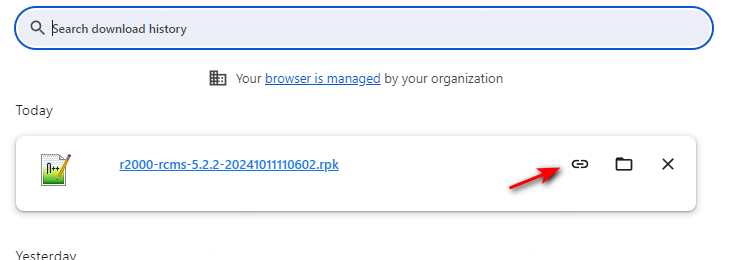
Example: https://rcmsclouddiag.blob.core.windows.net/app-firmware-blob/r2000-rcms-5.2.2-20241011110602.rpk
Phase 2: Installing the RCMS App Remotely
Note: From December 2019 all Robustel devices are shipped with RCMS installed by default but disabled to preserve data usage. If this applies to your device, skip to Phase 3.
- Trigger the Download: Send an SMS message to the device to start the RCMS App download and installation.
- SMS Format:
<router username>:<router password>;urlupdate url <url-link>. - Example SMS:
admin:admin;urlupdate url https://rcmsclouddiag.blob.core.windows.net/app-firmware-blob/r2000-rcms-5.2.2-20241011110602.rpk(replace with your copied link).
- Wait for Confirmation: Depending on network speed, the APP download and installation process may take several minutes. Do not reboot or power off the device during installation. When the device has received the message it will automatically download and install the file and send a response when finished. The replies will be:
Downloading,Download success.,Upgrading, andUpgrade success..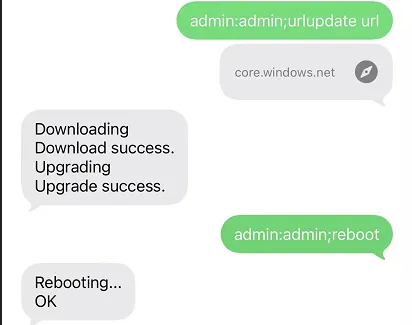
- Reboot the Device: When the device upgrades successfully, send an SMS to reboot the device.
- SMS Format:
<router username>:<router password>;reboot. - Example SMS:
admin:admin;reboot. - The device will reply with
Rebooting...andOK. After the device has rebooted, the APP has been installed.
Phase 3: Activating RCMS and Connecting to Cloud
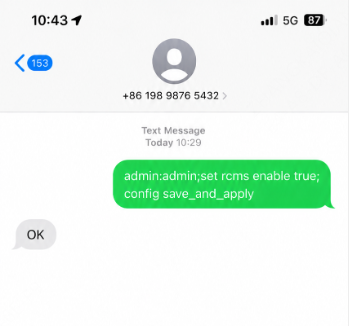
- Configure RCMS Parameters: When the device has successfully rebooted, send an SMS to configure the RCMS parameters and activate it.
- Command:
admin:admin;set rcms enable true;set rcms reg_addr rcms-cloud.robustel.net;set rcms port 443;config save_and_apply.
- Verify Configuration: Upon sending the command, the device should reply with "OK" confirming the configuration was successfully applied.
- Add Device to Cloud: The router side is done; please remember to add the SN on RCMS so the device can connect to your platform account.
Verification & Testing
- Platform Dashboard: Log into your RCMS dashboard. If the setup was successful and the Serial Number was added correctly, the gateway's status will change to "Online".
- Connection Dependencies: Keep in mind that RCMS connectivity also depends on:
- Correct system time (NTP)
- DNS resolution
- Outbound internet access
- Firewall/operator restrictions
Recommended Best Practice for Field Deployment
Before applying these steps to a device in the field we recommend bench testing first to ensure formatting and steps are followed correctly. For large-scale deployments:
- Verify SMS response behavior with the target cellular operator.
- Keep a rollback/recovery plan available.
- Record all device SNs and IMEIs before beginning the migration.
Troubleshooting / FAQ
Q: The device does not reply to SMS commands.
Possible causes:
- SMS remote management is disabled on the router's local UI.
- Incorrect username or password in the SMS string.
- The SIM card's SMS service is unavailable or out of credit.
- The cellular operator is blocking device-originated SMS replies.
Q: The device cannot download the RCMS APP (URL Update Failure).
Possible causes:
- APN or DNS resolution issue (router cannot route to the internet).
- URL is unreachable from the outside.
- APP package mismatch (e.g., wrong architecture).
- Common failure responses via SMS include: "Download failed", "Invalid package", "No space left", or "Network unreachable". If you receive these, verify internet connectivity, APP file compatibility, available storage space, and URL accessibility.
Q: The device shows offline in RCMS after a successful SMS configuration.
Possible causes:
- Incorrect SN/MAC/IMEI entered into the RCMS platform.
- DNS failure on the router preventing it from resolving
rcms-cloud.robustel.net. - NTP time synchronization failure (cloud certificates require accurate system time).
- RCMS outbound traffic is being blocked by a local firewall or operator restriction.
Q: I previously used RobustLink. Do I need to manually uninstall it?
A: No. If your device has a previous version of RobustLink (2.0/3.0) installed, once RCMS is installed successfully, the older RobustLink App will be automatically disabled.
Revision History
Version | Date | Author | Changes |
1.0 | 2026-05-8 | Hubery | Initial document creation. |