How to Download RobustOS Pro Logs
 Overview
When troubleshooting issues on your Robustel IoT gateway running RobustOS Pro, such as network connectivity problems or application errors, downloading system logs is essential for analysis. This guide walks you through the process of retrieving logs from the gateway's web interface, helping you capture diagnostic data without interrupting device operations. Applicable to Robustel edge computing gateways like the EG5120 series with RobustOS Pro firmware.
What You'll Need
Hardware List
- 1 x Robustel gateway running RobustOS Pro (e.g., EG5120)
- A computer with a web browser (Chrome or Firefox recommended)
- Ethernet cable for stable connection (optional, if using Wi-Fi for remote access)
Software/Firmware
- No limit firmware version
Other Notes
- Ensure the gateway is powered on and accessible via its IP address (default: 192.168.0.1).
- Do not restart the gateway during the log download to avoid losing recent log entries.
- Have admin credentials ready (default username&password: admin/admin; change from default for security).
 Step-by-Step Configuration Guide
Step 1: Access the Gateway's Web Interface
- Connect your computer to the gateway's LAN port using an Ethernet cable, or join the same Wi-Fi network.
- Open a web browser and navigate to the gateway's IP address (e.g., http://192.168.0.1).
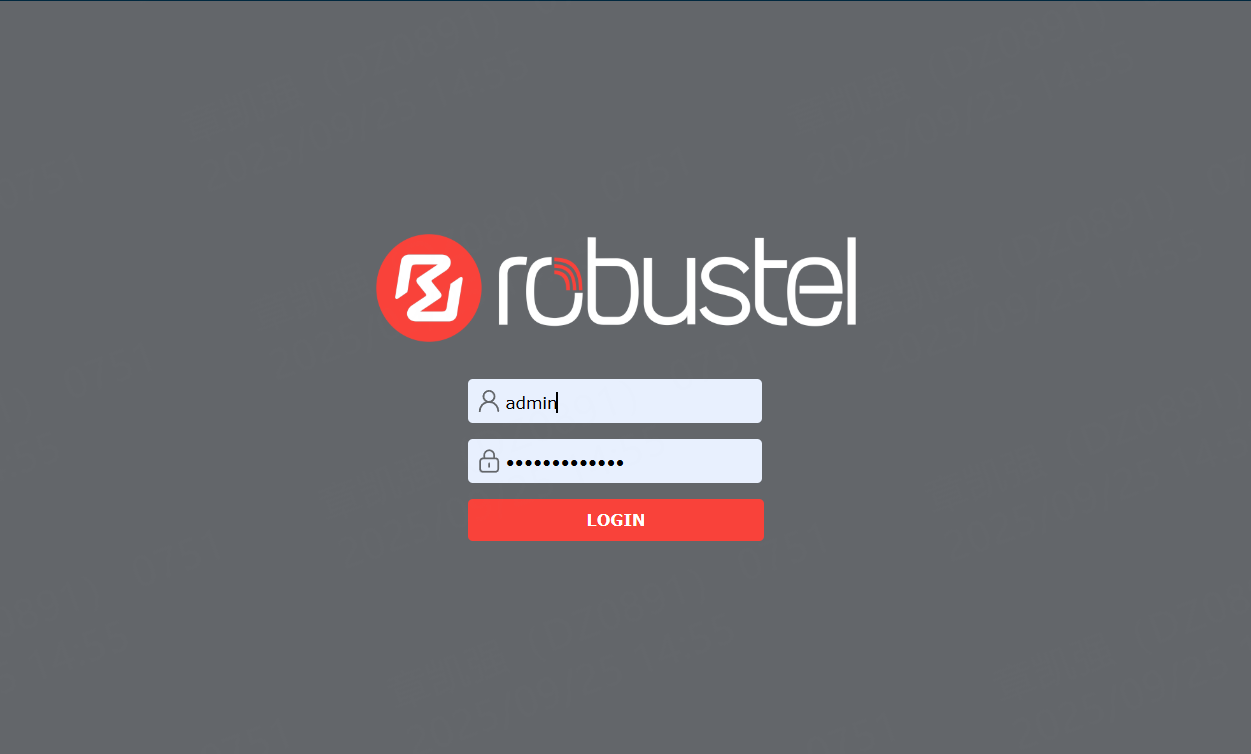
- Log in with your admin username and password.
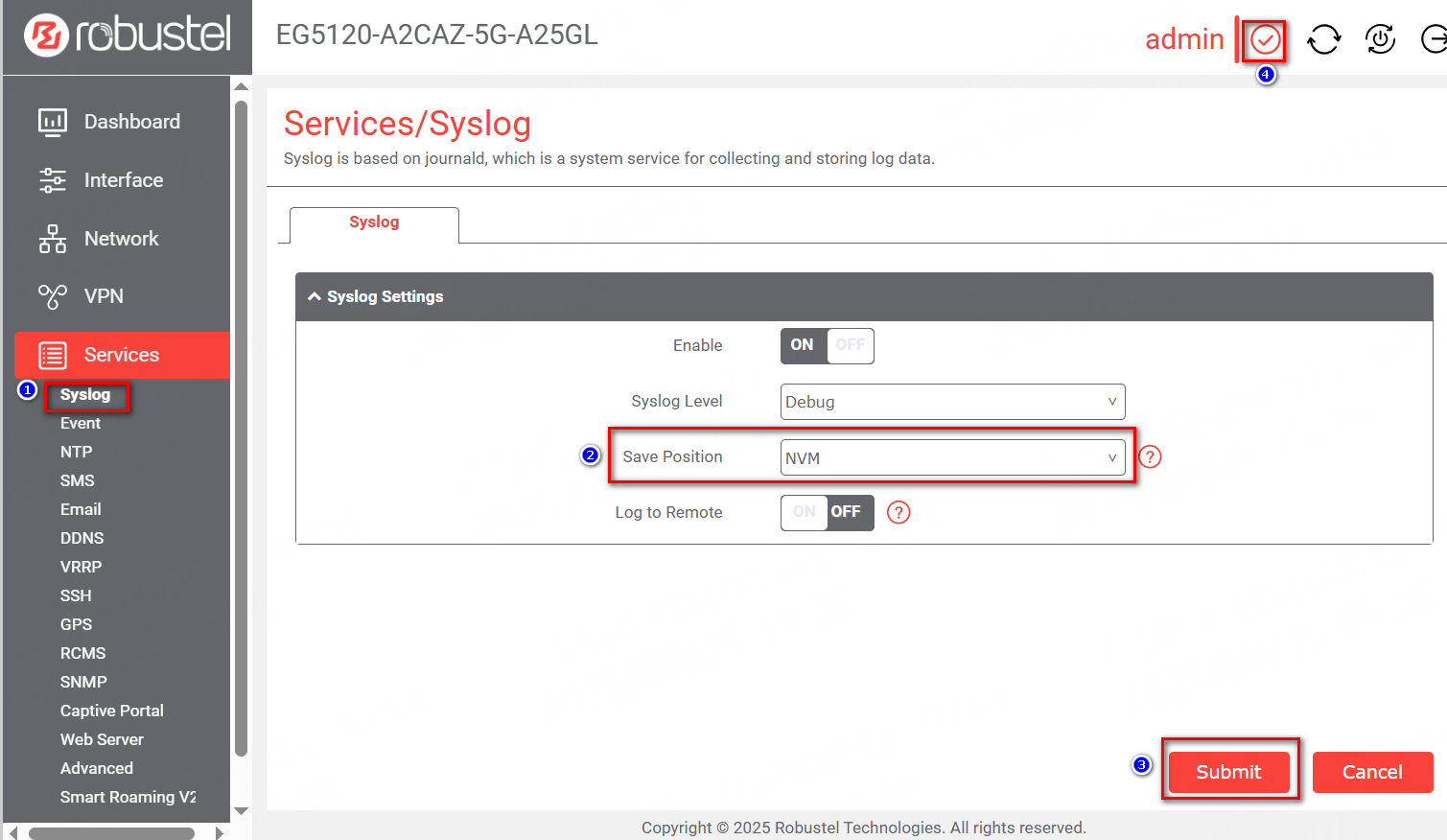
Step 2: Save Logs to NVM and reproduce the issue
- Click "Submit" and Save&Apply the setting.
- Perform the steps that trigger the issue.
- Wait for 5-10 minutes to allow the system to log the relevant data.
Step 3: Navigate to the Logs Section
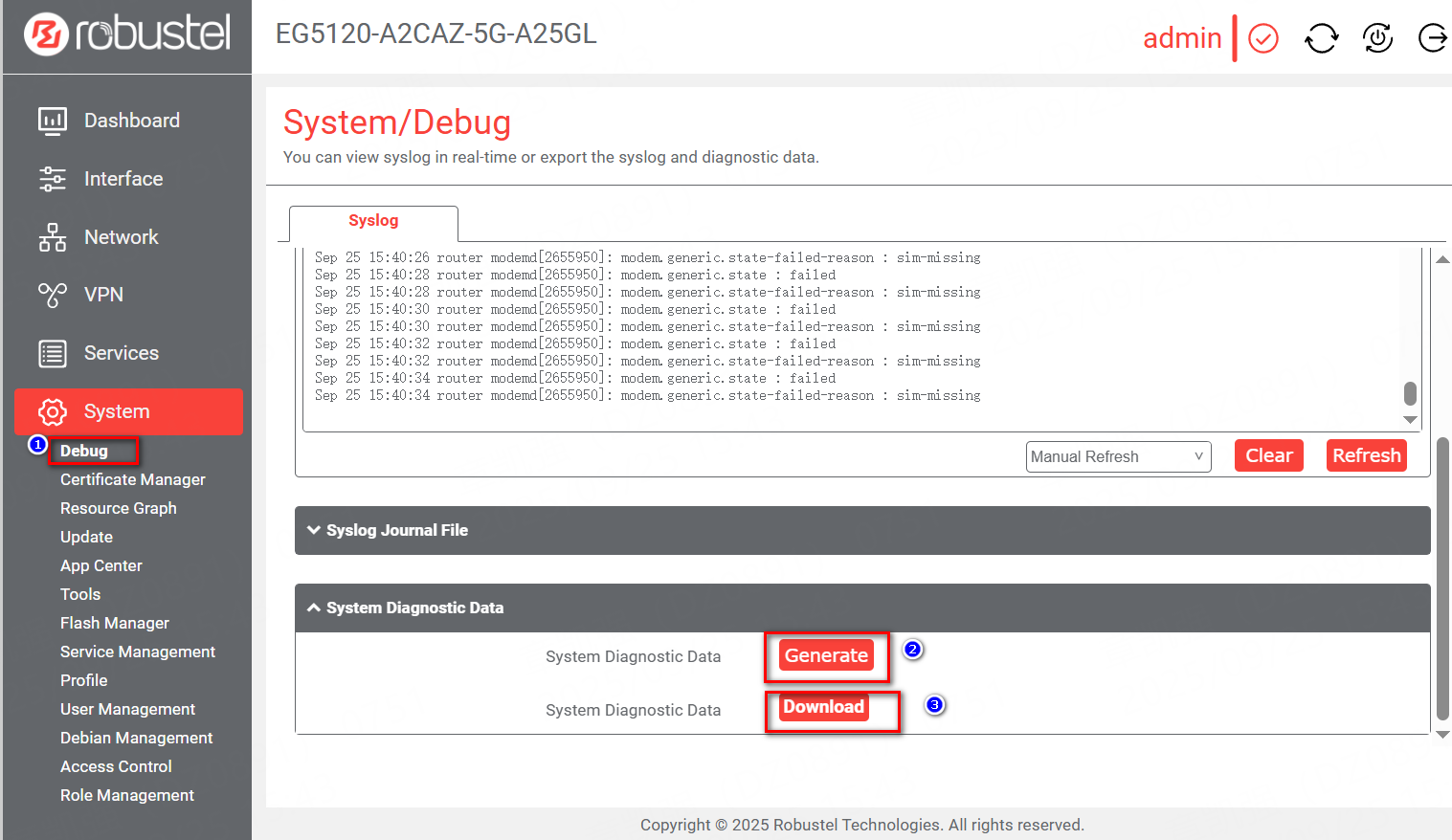
- In the left sidebar menu, expand the System section.
- Click on Debug -System Diagnostic Data, and click "Generate" button
Verification & Testing
To confirm the download was successful:
- Locate the downloaded file on your computer (e.g., in your browser's Downloads folder).

Troubleshooting / FAQ
Q1: I can't access the web interface. What should I do?
A: Verify your computer's IP is in the same subnet (e.g., 192.168.1.x). Ping the gateway's IP from your command prompt. If unreachable, reset the gateway via the physical reset button (hold for 10 seconds).
Q2: The Download button is grayed out or unresponsive.
A: Ensure you're logged in as admin. Update firmware if below version 3.8.0. Clear browser cache and try incognito mode.
Q3: The log file is empty or corrupted.
A: Re-download after refreshing the page. Avoid downloading during high system load; wait 5 minutes post-issue occurrence.