How to Enable Automatic License Renewal in RCMS?
Overview
This guide provides step-by-step instructions on how to enable the automatic license renewal feature in the Robustel Cloud Management Service (RCMS). Activating auto-renewal ensures that your device licenses are automatically renewed to their current paid tier (Essentials or Advanced or higher license) every 30 days. This prevents service interruptions and avoids having devices downgrade to the free Basic license tier upon expiration. This process is intended for account administrators.
What You'll Need
Account & Permissions:
- A registered RCMS account with administrator privileges.
- You must be logged into the RCMS platform (e.g.,
https://rcms.robustel.com).
Resources:
- A sufficient balance of RCMS license Tokens in your account to cover the upcoming renewal cost.
Important Notes:
- Auto-renewal is only applicable to paid license tiers (Essentials or Advanced or higher license).
- If auto-renewal is disabled or fails due to insufficient Tokens, the device license will be downgraded to the free 'Basic' tier upon its expiration date.
Step-by-Step Configuration Guide
Step 1: Log in and Navigate to the License Management Page
- Log into RCMS:
- Open your web browser and go to the RCMS portal (
https://rcms.robustel.com). - Enter your username and password to log in.
- Access License Management:
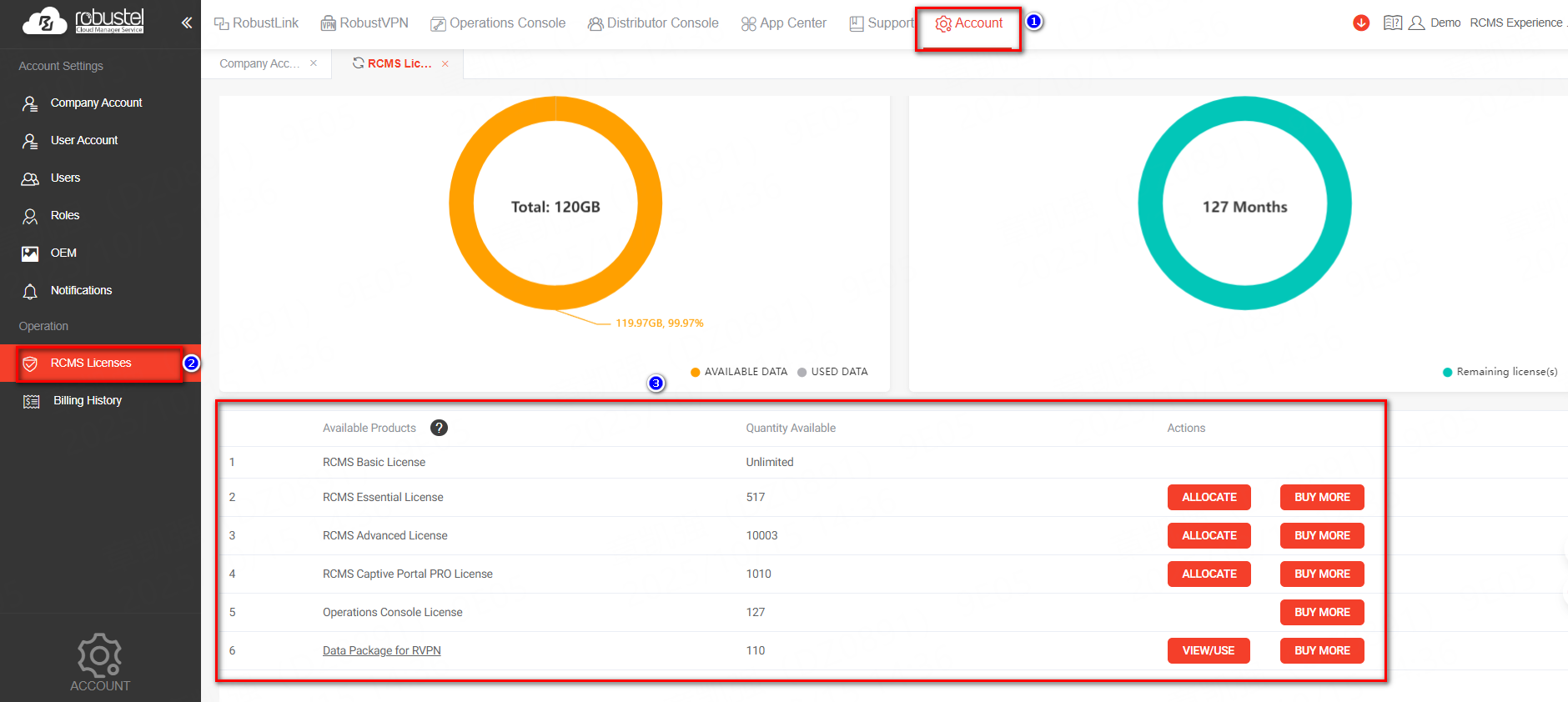
- In the top navigation bar, click on Account.
- From the left menu that appears, select RCMS Licenses. This will take you to the license list page.
Step 2: Select Devices and Enable Auto-Renewal
- Select Target Devices:
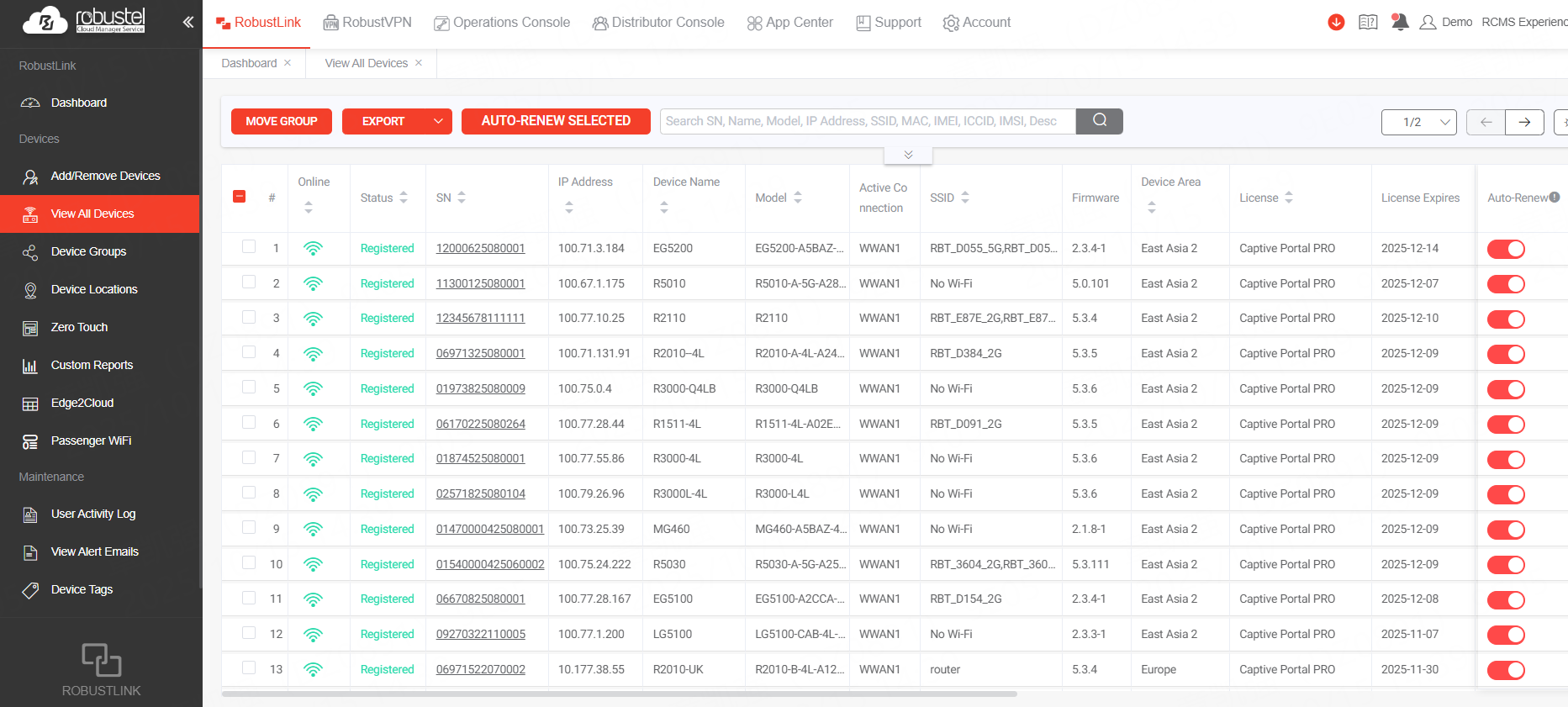
- On the RobustLink View All Devices list page, you will see all your devices with their current license status, tier, and expiration date.
- Check the box next to each device for which you want to enable auto-renewal. You can select multiple devices at once.
- Open the Auto-Renew Dialog:
- With the device(s) selected, click the AUTO-RENEW button located above the device list.
- Enable and Save the Setting:
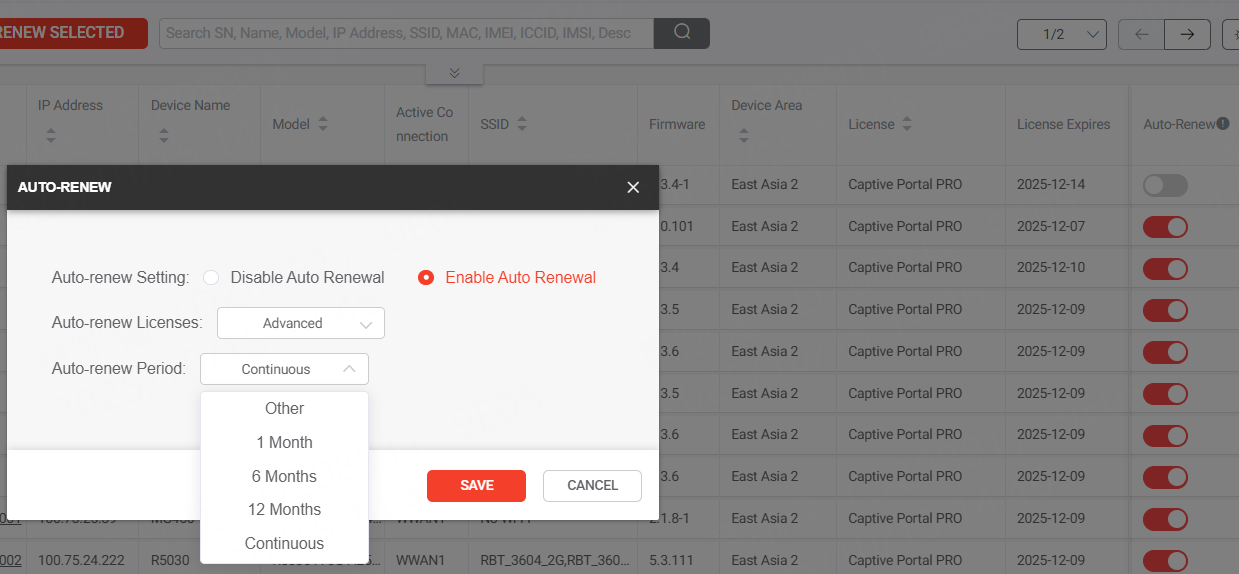
- A dialog box will pop up.
- Click the toggle switch to change the Auto-Renew status to Enable.
- Click the SAVE button to confirm and apply the changes.
Verification & Testing
To verify that the configuration was successful, return to the license list page. For the devices you selected, the Auto-Renew column should now display the status as "Enabled".  The system will now automatically deduct the required Tokens to renew the license for these devices every 30 days, ensuring they remain at their current tier.
Troubleshooting / FAQ
- Q1: What happens if I don't have enough Tokens in my account?
A1: The renewal will be triggered automatically before the license expires. If your account has an insufficient Token balance at that time, the auto-renewal will fail, and the device's license will be downgraded to the free 'Basic' tier upon expiration.
- Q2: How do I disable auto-renewal?
A2: Follow the same steps (select devices, click AUTO-RENEW), but in the dialog box, toggle the status to Disable. The device will then remain at its current license tier only until its expiration date. 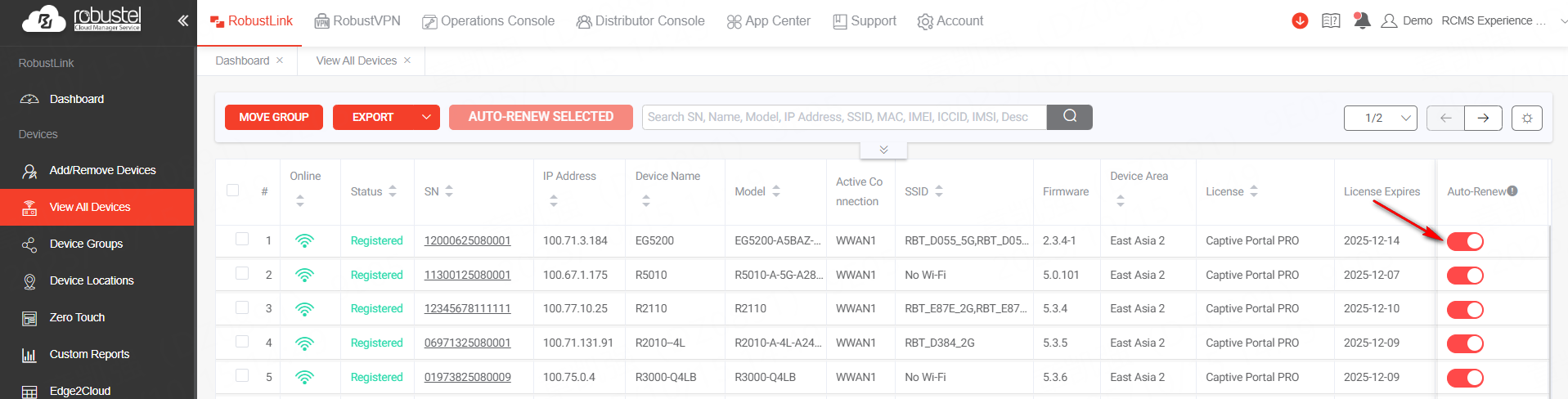
- Q3: The "AUTO-RENEW" button is greyed out or I'm encountering an error.
A3: First, ensure the devices you have selected are on a paid license tier (Essentials or Advanced), as this feature is not available for Basic licenses. If you still face issues, please contact Robustel support for assistance.
Revision History
Version | Date | Author | Changes |
1.0 | 2025-09-28 | Hubery | Initial document creation based on user-provided notes. |