How to Configure Email Alerts for Device Connectivity and Power Loss in RCMS
Overview
In mission-critical IoT applications, immediate awareness of a device going offline is essential for minimizing downtime. This guide explains how to configure Robustel Cloud Manager Service (RCMS) to send email notifications when a gateway loses internet connectivity or experiences a power-off event. By combining local device event settings with the RCMS Cloud push engine, you can ensure your team is notified the moment a unit becomes unreachable.
What You'll Need
- Hardware List: 1 x Robustel Gateway (e.g., EG5120, R1510, or R2000 series) with a stable power supply and an active SIM card/WAN connection.
- Software/Firmware: * Device: RobustOS or RobustOS Pro (Ensure the latest firmware is installed).
- Cloud: An active RCMS account (Advanced/Essential license recommended).
- Information: SMTP server details (Host, Port, Username, Password) for your company's email service.
Step-by-Step Configuration Guide
Part 1: Enable Alert Events on the Device
Before the cloud can "push" an alert, the device must be configured to recognize and report specific status changes.
- Log in to the Device Web GUI locally or via RobustVPN.
- Navigate to Services -> Event -> Notification.
- Find the relevant events for your scenario:
- WWAN Link UP&Down: To detect internet loss.
- System Time update: To detect power-cycle events.
- Set the Status to "ON" for these events and ensure they are set to log to the system/cloud.
- Click Submit and Save & Apply.
Part 2: Configure the Cloud Email Server
RCMS requires an outgoing mail server to distribute alerts to users.
- Log in to your RCMS Portal.
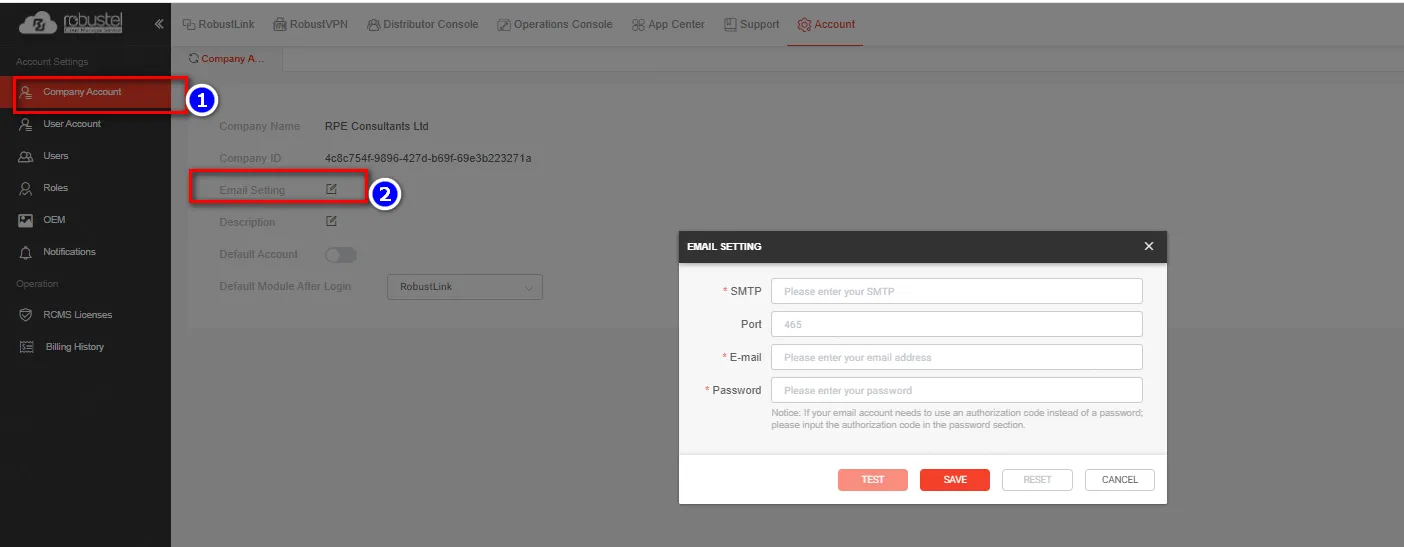
- Navigate to Account -> Company Account.
- Click on the Email Server tab or section.
- Enter your SMTP configuration. If using a standard service like Gmail or Outlook, ensure the port and SSL/TLS settings match their requirements.
Note: Before starting, ensure you have generated an App-Specific Password for your email account (e.g., from Gmail or Outlook). For security reasons, modern mail servers usually block the use of your standard login password for SMTP. - Click Test Email to verify the connection. Do not proceed if the test fails.
Part 3: Create Alert Rules in Alert Center
This step defines the logic that triggers an email notification.
- From the left-hand menu, go to Alert Center -> Alert Rules.
- Click + Create New Alert Rules.
- Basic Settings: Give the rule a name like "Critical Connectivity Alert."
- Conditions: Select the trigger. For connectivity loss, choose the "Offline" status event.
- Click Save.
Part 4: Associate Rules and Enable Push Notifications
Finally, you must link the rule to a group and tell RCMS which users to notify.
- In the Alert Rules list, click the Link to Groups icon next to your new rule.
- Select the Device Group containing the gateways you wish to monitor.
- Navigate to Device Management -> Device Group.
- Find your group, click Edit, and locate the Notify User tab.
- Toggle the Notify switch to ON for the intended recipients.
- Click Save
Verification & Testing
To ensure the system is functional, perform a physical disconnection test:
- Simulate Connectivity Loss: Disconnect the WAN cable or remove the SIM card from one of the gateways in the monitored group.
- Wait for Timeout: RCMS usually detects an "Offline" status after 3–5 minutes of lost heartbeats (depending on your heartbeat interval settings).
- Check Email: The assigned users should receive an automated email from the RCMS platform.
- Confirm Log: Go to Alert Center -> View Alert Emails to see a record of the sent notification.
Note: If testing power-off, the "Offline" alert will trigger because the device can no longer send heartbeats to the cloud.
Troubleshooting / FAQ
Q: Why am I not receiving emails even though the device shows "Offline"?
A: Check if the Notify User toggle is enabled for the specific device group. Also, verify that the email address in the User Profile is correct and that the SMTP Test in Company Account was successful.