How to Prevent Unintended Cellular Roaming Using PLMN Lock on RobustOS Series Devices
Overview
When Robustel's RobustOS series devices are deployed remotely near national borders, they may inadvertently register to a neighboring country's cellular tower if the foreign signal is stronger. This can result in unintended and costly international roaming charges. You can prevent this issue and ensure the device stays on the home network by utilizing the PLMN Lock feature to restrict the connection exclusively to your designated local operator.
What You'll Need
- Hardware List:
- 1 x RobustOS Series Gateway/Router.
- 1 x Active SIM card for your designated local operator.
- Appropriate power supply and cellular antennas.
- Software/Firmware: Standard RobustOS (ROS) firmware.
- Information Requirements: The exact MCC+MNC (PLMN) code for your target local operator.
- Important Note: If you encounter connection issues during configuration or testing, do not reboot the device before capturing and downloading the diagnostic logs. Rebooting will clear the temporary system logs needed for troubleshooting.
Step-by-Step Configuration Guide
Phase 1: Identify the Correct PLMN Code
- Understand that the Public Land Mobile Network (PLMN) code consists of the Mobile Country Code (MCC) plus the Mobile Network Code (MNC).
- Determine the specific 5-digit or 6-digit PLMN code for your local provider. Here are a few examples:
- Brazil (Vivo):
72406(MCC 724 + MNC 06) - Denmark (TDC):
23801(MCC 238 + MNC 01) - Denmark (Telenor):
23802(MCC 238 + MNC 02)
- Brazil (Vivo):
Phase 2: Configure PLMN Lock in RobustOS
- Log in to your RobustOS series device's web user interface.
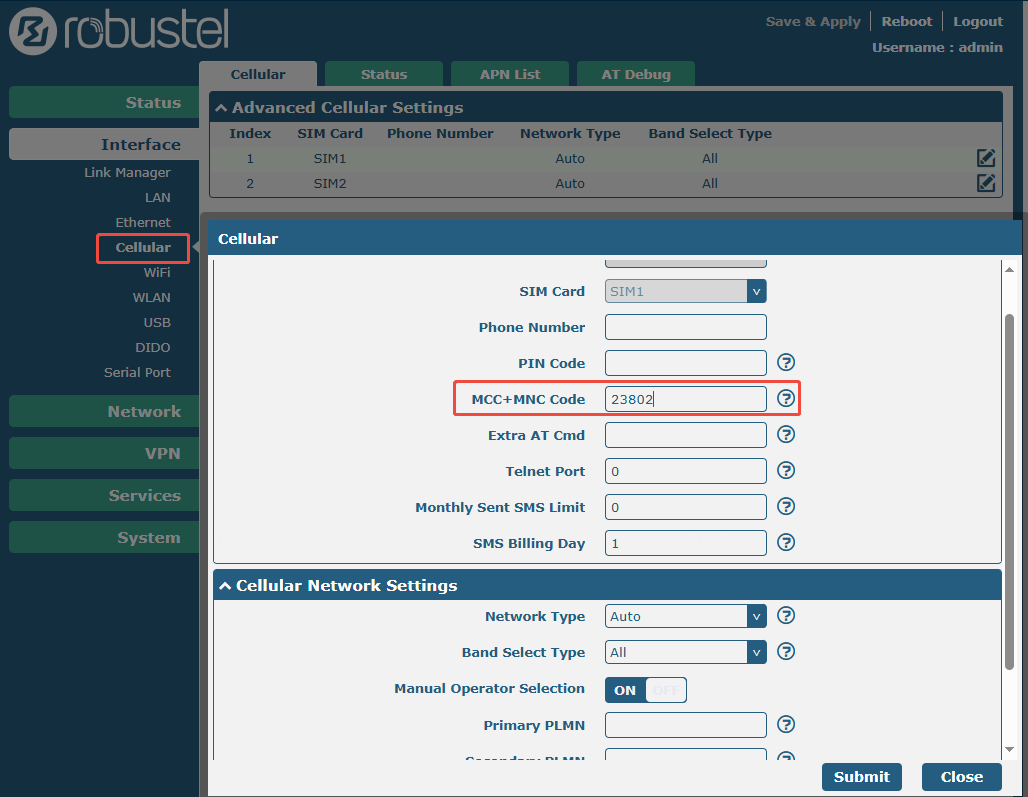
- Navigate to Interface > Cellular in the left-hand menu.
- Under the Advanced Cellular Settings section, click the edit icon for your active SIM card (e.g., SIM 1).
- In the pop-up window, locate the MCC+MNC Code field.
- Enter your specified PLMN code (for instance, enter
23802if locking to Telenor in Denmark). - Click Submit at the bottom of the window.
- Click Save & Apply at the top right of the screen to commit the configuration.
Configuration Screenshot Reference:
Notice the complete page view below. The critical MCC+MNC Code field is highlighted with a red box for your convenience.
Verification & Testing
To confirm your configuration is successful, follow these steps:
- Wait a few moments for the cellular modem to re-initialize and search for the network.
- Navigate to Status > Cellular in the web interface.
- Review the Registration Status and Network Provider fields.
- Success State: The status will show as "Registered" and the provider name will match your designated local operator exactly. The device will now completely ignore stronger signals from foreign towers across the border.
Troubleshooting / FAQ
Q1: What happens if the local operator's tower goes offline or loses signal?
A: Because the device is strictly locked to the configured PLMN, it will simply remain offline and continue searching for that specific network. It will not fall back to a foreign network, ensuring you never incur unintended roaming charges.
Q2: I entered the PLMN code, but the router won't connect at all. What should I check?
A: Double-check that your SIM card is fully activated for the specific network you are trying to lock onto, and ensure you have not swapped the MCC and MNC digits. If you are unsure of the correct PLMN code, you can temporarily clear the PLMN field, let the device auto-connect, and review the Status > Cellular page to verify the exact PLMN your SIM card expects to use.